Command reference
Three commands work everywhere: /link, /help and /claim. Every other group is
installed into a server only while that server is
connected to an organization, and is removed again on disconnect.
Most commands also need your Discord account linked to a Finalist account. The bot will tell you if it isn't.
Always available
| Command | Options | What it does |
|---|---|---|
/link | None | Links your Discord to your Finalist account, or confirms it is already linked. |
/help | command (optional) | Browse what the bot can do. Pass a command name for detail. |
/claim | None | Takes ownership of this server's organization. Needs Manage Server. |
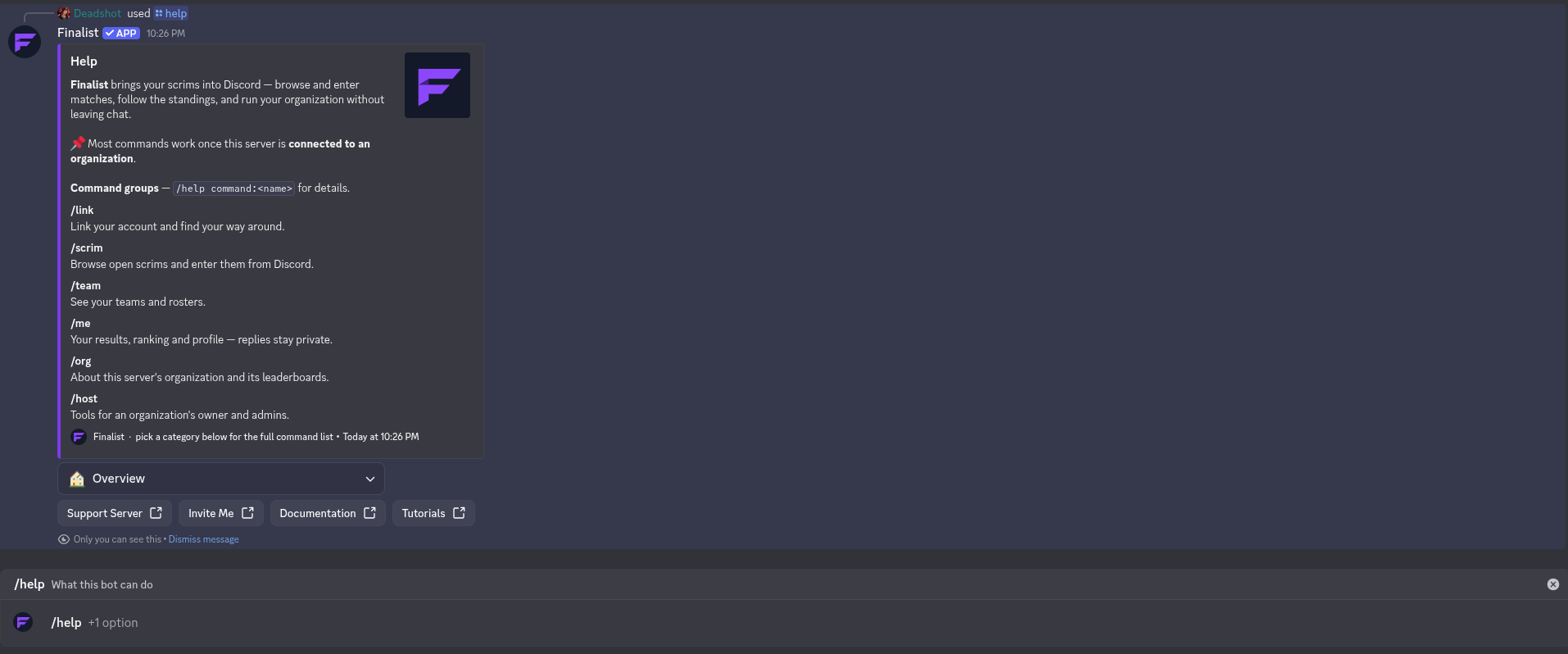
/help lists every command group with a one-line summary. The dropdown below it opens a
category, and /help command:<name> jumps straight to one. Four link buttons sit underneath:
Support Server, Invite Me, Documentation and Tutorials — Invite Me is the
quickest way to add the bot to another server.
/claim is global for a reason: a server that has just had the bot added holds an
unclaimed organization, and the command has to work there before anything else does.
See Connect your server.
/scrim: browse and enter scrims
Every subcommand takes the scrim's share id (the 12-character code from its URL); the option autocompletes, so you rarely type it.
| Command | Options | What it does |
|---|---|---|
/scrim list | None | Active scrims, grouped into Live, Open for registration, and Upcoming. |
/scrim view | scrim (required) | Status, start time, registration window and slot list. |
/scrim register | scrim (required), team (optional) | Registers your team. Only the captain can. |
/scrim unregister | scrim (required), team (optional) | Withdraws your team. |
/scrim waitlist | scrim (required) | Shows who is waiting for a slot. |
/scrim results | scrim (required) | Placements and points, once results are declared. |

team is optional. If you captain exactly one team, the bot uses it.
/team: your teams
| Command | Options | What it does |
|---|---|---|
/team mine | None | Your teams and their rosters. |
/team view | team_id (required) | A team's roster. The captain is marked with a crown. |
/team create | None | Sends you to the web app. The bot doesn't create teams itself. |
/me: your stats and profile
| Command | Options | What it does |
|---|---|---|
/me stats | team_id (optional) | Your recent results, or a team's record. |
/me rank | None | Your standing in this server's organization. |
/me profile | None | Opens your Finalist profile. |
/org: this server's organization
| Command | Options | What it does |
|---|---|---|
/org info | None | Name, handle and owner of the connected organization. |
/org leaderboard | board (optional: Players or Teams) | Top 10. Defaults to players. |
/host: organizer tools
Restricted to the organization's owner and admins. This is a platform role, not a Discord permission. An org admin without Manage Server can still use these, and a Discord administrator who isn't in the org cannot.
| Command | Options | What it does |
|---|---|---|
/host create | None | Opens the new-scrim page. |
/host edit | scrim (required) | Opens a scrim's management page. |
/host registrations | scrim (required) | Lists the teams registered for a scrim. |
/host org | None | Opens organization settings: members, invites, bans, Discord. |
/host presets | None | Opens recurring scrim schedules. |
/host bind | scrim (optional) | Posts announcements in this channel. |
/host unbind | None | Stops announcements in this channel. |
Creating and editing happen on the web; /host mostly gives you a fast way in, plus the
channel bindings that drive announcements.
Replies are private
Everything that shows your data (/link, /me *, /team mine, /host *,
/scrim unregister) replies ephemerally, so only you see it. /scrim list,
/scrim view and /team view post publicly, since they are meant to be shared.