Connect your server
The Finalist bot is a companion to the web platform, not a replacement for it. Scrims are created and managed on app.finalist.live; the bot brings announcements, room details and quick lookups into your Discord server.
Every server that uses Finalist is backed by an organization, because scrims belong to an org and never to a person. How you get one depends on whether you already have one.
Invite the bot
Two ways, and they add the same bot:
- Open the Finalist bot's profile in Discord and press Add App.
- Run
/helpanywhere the bot already is, and press Invite Me.
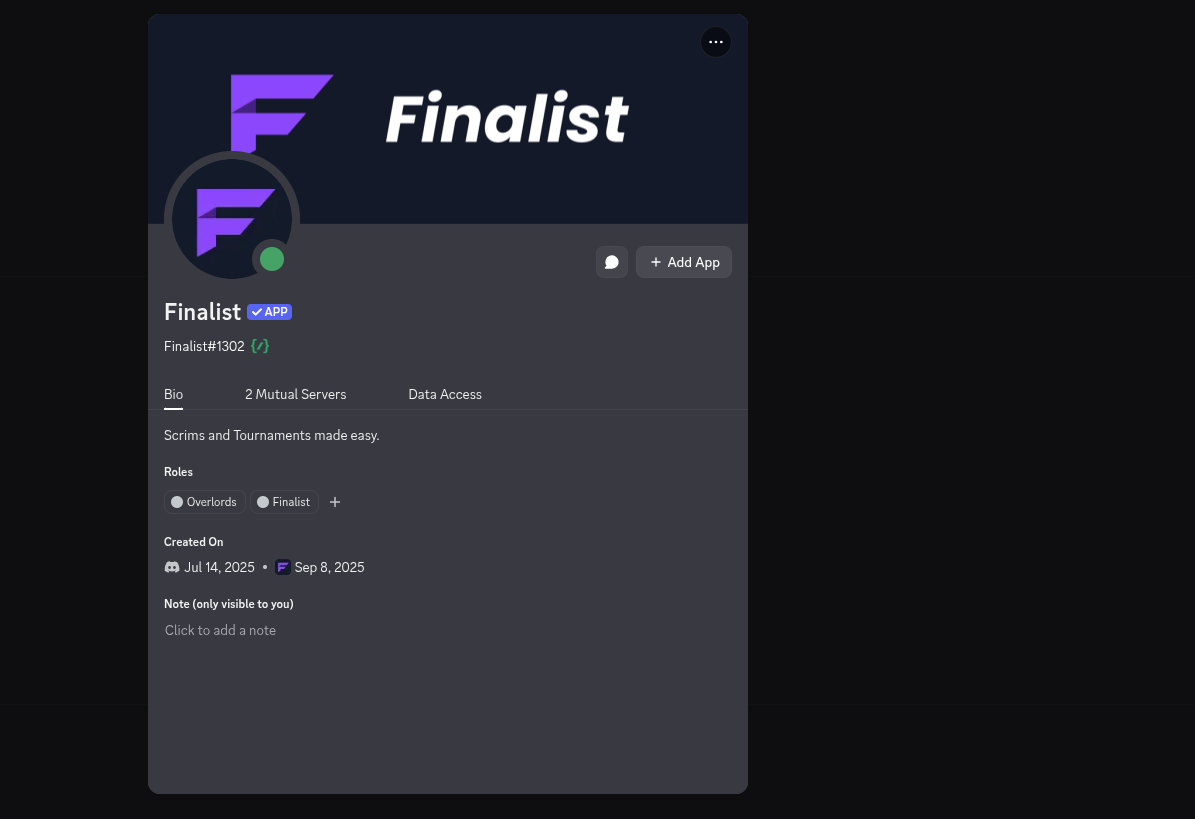
Pick your server, keep the permissions it asks for, and confirm. You need Manage Server on that server — that part is Discord's rule, not ours.
If you don't have an organization yet
Inviting the bot is the whole setup.
Finalist notices the bot joining and provisions an organization for that server on the spot, named after it. You don't fill in a form, and you don't have to visit the dashboard first.
That organization arrives unclaimed: it exists and it's linked to your server, but it has no owner and no members yet. Claiming it is the next step, and until someone does, nobody can host with it.
Claim it
Whoever added the bot is recorded as the pending owner. Finalist works that out from the server's audit log, which is the reason the invite asks for View Audit Log. If it can't read the log, it falls back to the server's owner.
There are two ways to claim, and the first valid one wins:
In Discord, run /claim. Any member with Manage Server can, not just the inviter.
Ownership goes to the Finalist account linked to their Discord. If their Discord isn't
linked yet, the bot says so and they can link and run it again.

On the web, sign in with the Discord account that added the bot. The server shows up as claimable and you take it in one click.
Whoever claims it becomes the owner, and from there it's an ordinary organization: invite members, give them roles, and hand ownership on later if you want.
If you already have an organization
Start from the dashboard instead, so the server joins the org you already have rather than getting one of its own.
- Open your organization on app.finalist.live.
- Go to Settings → Discord.
- Press Connect Discord, pick your server, and confirm.
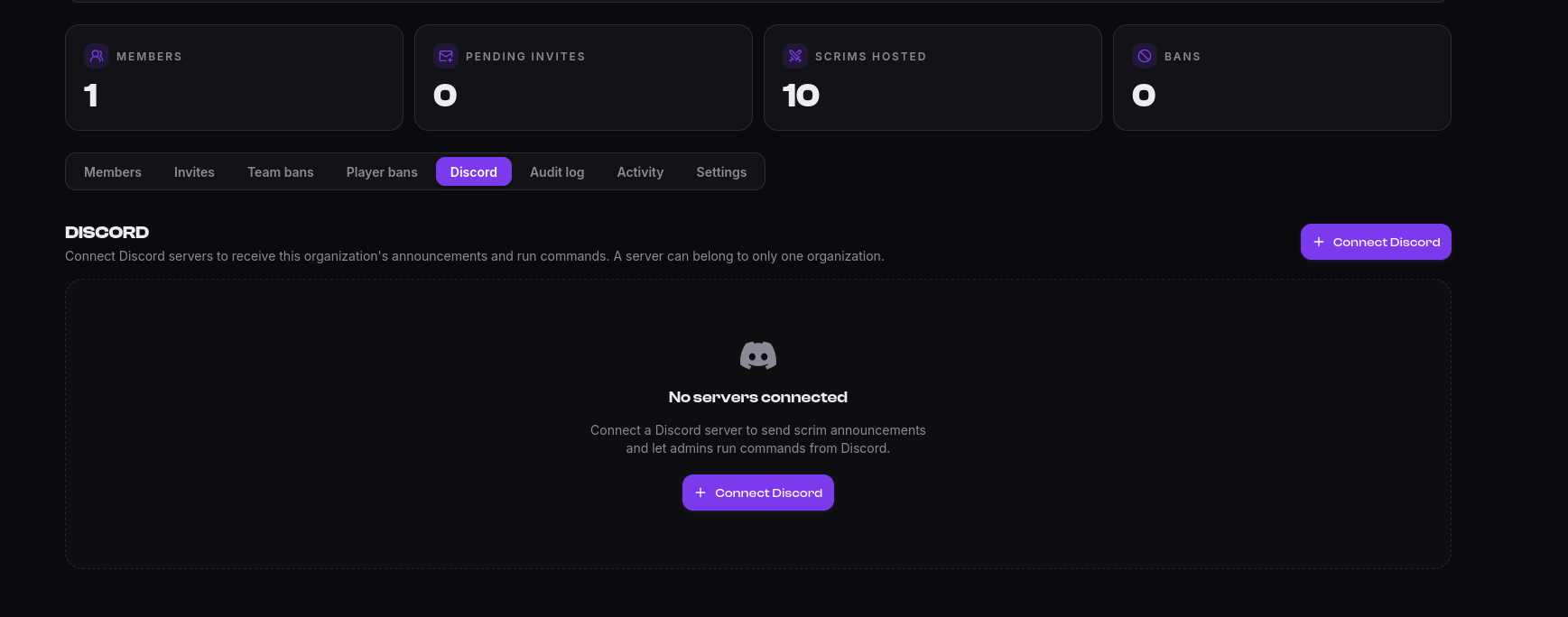
That button invites the bot for you: it's the same invite, carrying the knowledge of which organization the server should end up in. So there's nothing to claim afterwards — the server is linked to your org the moment the bot lands.
A server belongs to exactly one organization. Trying to connect one that another org already owns is rejected.
You can connect more than one server to the same organization, and every connected server gets the same announcements.
What the bot can do before it's connected
Until a server is linked to an organization, the bot only exposes /link, /help and
/claim. Everything else (/scrim, /team, /me, /org, /host) appears the moment
the link exists, and disappears again if you disconnect.
Because inviting the bot links the server straight away, those commands usually show up
immediately. /host is the exception: it needs an org owner or admin, and an
unclaimed org has neither. Claim first, then host.
Choose where announcements are posted
By default the bot has nowhere to post. An organization owner or admin binds a
channel with /host bind:
/host bind
Run it in the channel that should receive announcements. To scope a channel to a single scrim instead of every scrim in the organization, pass its share id:
/host bind scrim:x7Kq2mNp9wLd
The scrim option autocompletes, so you pick the scrim by name and date rather than typing
a code. You can only bind a scrim that belongs to this server's organization; reach for
someone else's and the bot stops you:
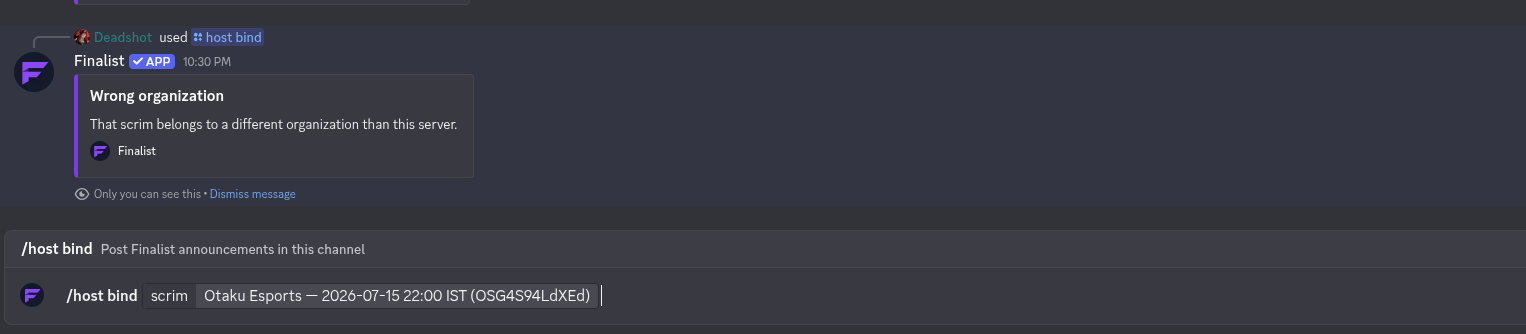
To stop announcements in a channel:
/host unbind
What gets posted
Once a channel is bound, Finalist posts an embed whenever a scrim changes state.
| Status | Message |
|---|---|
registration_open | Registration is OPEN |
registration_closed | Registration closed |
ongoing | Scrim is LIVE |
completed | Scrim completed |
cancelled | Scrim cancelled |
Each embed links back to the scrim's page. Room details are posted separately. See Room details.
Delivery is best-effort: if Discord is unreachable, or a member has DMs closed, the scrim itself is unaffected.